
How to start teaching Chinese with Laowai Classroom
Website
Laowai Classroom keeps a class, its teaching material and student work together. Start with one class and one short lesson, then use it live or assign it for later.
Create a class and invite students
- Sign in with your Laowai account and open Classroom.
- Choose the Teacher workspace and Create class.
- Give the class a name, choose a level and enter the teacher name students should see.
- Open the class and choose Invite students.
- Copy the invitation and share it with the intended students through your usual channel.
Students sign in with their own Laowai accounts and choose the name you will see in class. Anyone holding the invitation can use it to join, so treat it as a class invitation rather than a public article link.
The same account can teach and study. Use the Teacher and Student workspace controls to switch roles when needed.
Prepare one useful learning task
Open Laowai library inside Classroom to choose available reading, grammar or vocabulary material, or create a lesson from My lessons. Inspect the actual text, prompts, audio and source credits before teaching it.
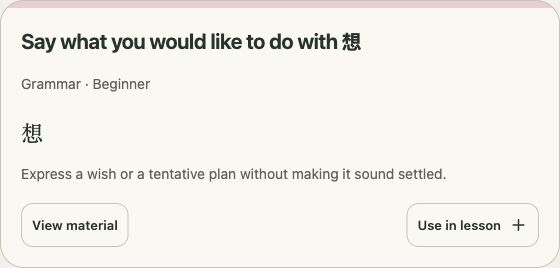
For a first lesson, choose a goal that can be checked: “Students can order a drink” is more useful than “Practise Chinese”. Include a short model, the words needed for it and a task where students make their own choice.
我想喝茶。你呢?
Wǒ xiǎng hē chá. Nǐ ne?
I would like some tea. What about you?
Ask each student to replace 茶 with their own choice. That checks whether they can use the pattern beyond copying it.
Choose live teaching or homework
Teach live opens a shared lesson in which the teacher controls material and questions while students respond on their devices. Use this when the class is working together at the same time.
Assign homework gives students a fixed copy to complete later. The assignment can have a due date, and the teacher can review submitted work.
You can use the same prepared lesson for both purposes. Check the assigned copy before sending it: later edits in your lesson editor do not silently rewrite an already assigned task.
For a remote lesson, use your normal external video or voice call alongside Classroom. The lesson workspace is not itself the video-call service.
Follow the work into the next lesson
Use Review homework to see submitted work and give feedback. In the Student workspace, Words to practise brings together relevant teacher selections and words from mistakes. Vocabulary practice and teacher acceptance of homework remain separate records.
Once the first lesson works, group lessons into a teacher course, add class events to Schedule or share material with colleagues through School. A solo teacher can begin without creating a school.
If you only need a paper activity, the printable teacher resources include student sheets with separate answer keys. They can be used independently of an account-based class.