
How to save and sync Laowai words, progress and books
Website and app
Before changing devices, check where your study data is saved. A guest browser workspace, a Laowai account and an existing iCloud workspace are distinct places for your data.
Identify the workspace you are using
Open Profile or the account area above Study. A label such as This browser means that the guest data is local to that browser. Another browser, a private browsing session or another device does not automatically contain it.
A signed-in Laowai account has its own workspace. The legacy iCloud connection belongs to the Apple ID workspace used by older sync flows. Choose the one that actually holds the words and progress you need.
Do this check before importing a backup or a large vocabulary file. It is easier to keep data organised when you know which destination will receive it.
Sign in and choose how to handle guest data
- Open the account sign-in from Profile or Study.
- Use the same Laowai account you intend to use on your other device.
- Read the offered choice for existing browser data. It is imported when you choose that action.
- Wait for the sync status to finish and inspect a known list.
- On the second device, use the same account and check that list again.
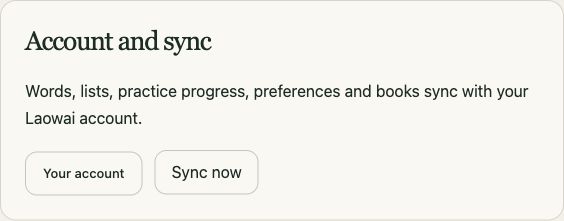
Account sync covers the supported words, lists, practice progress, preferences and books. Confirm the status shown by the actual client; a sign-in success alone does not prove that the last edit reached another device.
Some native integrations require a compatible app release. Use the workspace and sync controls present in your installed version, and keep an export while changing workflows.
Use legacy iCloud for an existing Apple ID workspace
The Legacy iCloud connection remains available in Study for an existing Apple ID workspace. Use the same Apple ID as the app. App iCloud sync requires Laowai Pro.
Do not assume that signing into a Laowai account automatically opens your old iCloud lists. Check the workspace label and use the appropriate connection. The two workflows are kept separate so that you can see where your data belongs.
If a device appears to be missing a list, first check the signed-in identity, workspace and connection state. Reimporting repeatedly can create extra copies without fixing the underlying account mismatch.
Keep a recovery copy before changing storage
Study offers Download study backup and Import study backup. A backup contains study data, so keep it in your own files. Importing a compatible backup merges supported saved data; read the result message before continuing.
A .laowailist, CSV or TSV export is for vocabulary transfer. It is not the same thing as a full study backup. Keep the original files for imported books as well.
If storage recovery is needed, use the offered retry or recovery-backup action. Preserve the existing browser data while investigating. Clearing storage before saving a copy can remove the local workspace you were trying to recover.
Teacher assignments and their review states live in Classroom. A vocabulary list or a quick-review score does not replace the submitted homework record.